# Compteur automatique de colonies

VWR®Auto lite
EUROPEAN CATALOGUE NUMBER: 710-2072


Cet appareil permet de compter automatiquement le nombre de colonies présentes dans un échantillon donné, grâce à un algorithme.

# Présentation de l'appareil

[![image.png](https://wiki.fablab.sorbonne-universite.fr/BookStack/uploads/images/gallery/2024-04/scaled-1680-/w65image.png)](https://wiki.fablab.sorbonne-universite.fr/BookStack/uploads/images/gallery/2024-04/w65image.png)

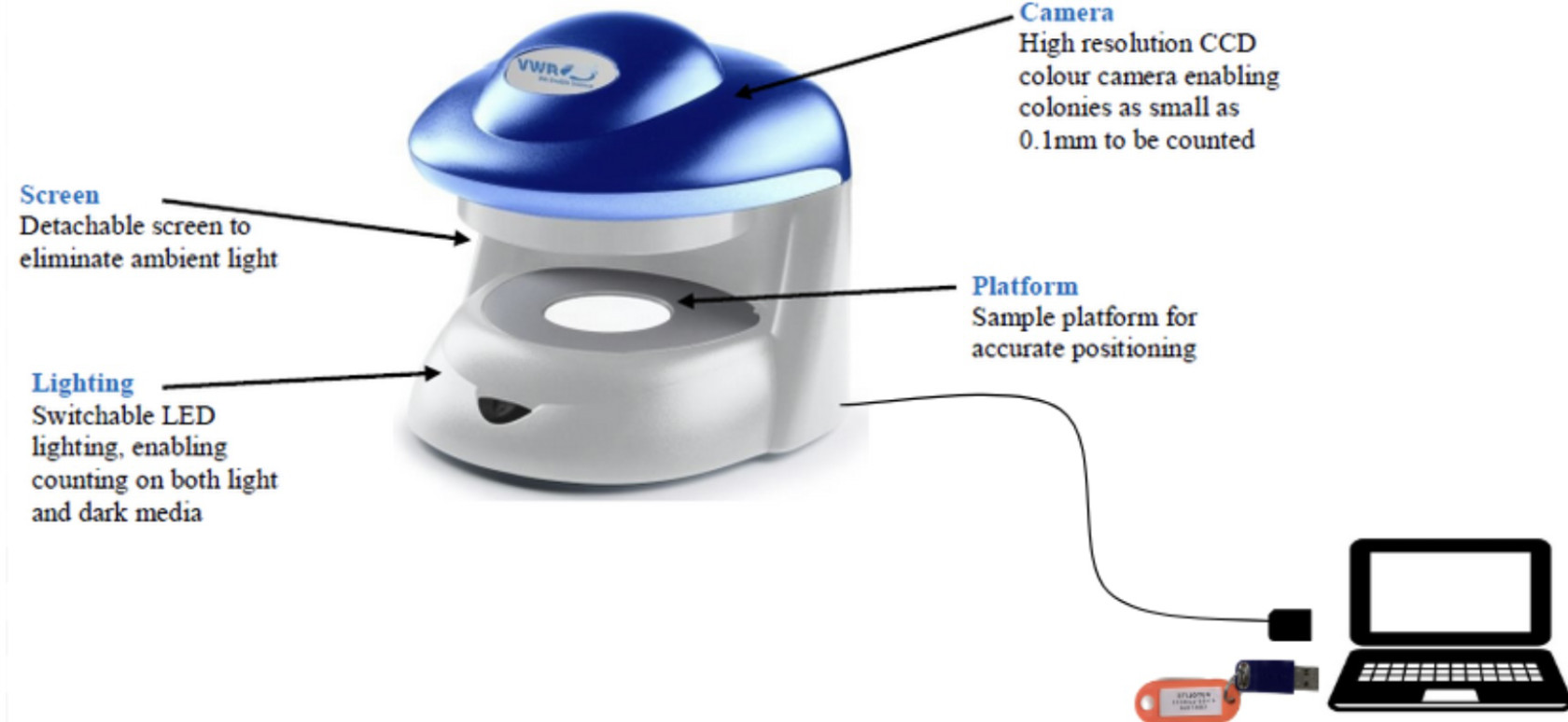
Le compteur de colonies vous permet d'obtenir une approximation du nombre de colonies présentes dans une boîte de Pétri, grâce à l'utilisation d'un logiciel Autolite affilié et d'une caméra présente dans l'appareil. Celle-ci vous permet d'obtenir des images en directes de vos colonies. Les paramètres mesurés sont ensuite fournis sous la forme d'un compte-rendu, directement fourni par le logiciel.

<p class="callout info">Pour plus d'informations sur ce modèle, vous pouvez vous rendre sur le site du fabricant [ici](https://fr.vwr.com/store/product/34973691/vwr-auto-i-lite-i-compteur-automatique-de-colonies "Lien fabricant Autolite")</p>

Cet appareil présente des avantages :

<p class="callout success">Permet une estimation rapide du nombre de colonies d'un échantillon</p>

<p class="callout success">Permet d'effectuer cette estimation avec les mêmes paramètres sur un grand nombre d'échantillons</p>

<p class="callout success">Permet d'obtenir des résultats déjà formatés </p>

Mais aussi des inconvénients :

<p class="callout danger">Ne fonctionne que pour les colonies contrastées</p>

<p class="callout danger">Ne produit qu'une aide au comptage, et non un comptage parfaitement précis</p>

Tous ces paramètres sont à prendre en compte au moment des mesures.

# Guide d'utilisation de la machine

[![IMG_0178.jpg](https://wiki.fablab.sorbonne-universite.fr/BookStack/uploads/images/gallery/2024-01/scaled-1680-/img-0178.jpg)](https://wiki.fablab.sorbonne-universite.fr/BookStack/uploads/images/gallery/2024-01/img-0178.jpg)
<p class="callout info"><span style="font-size: 11pt; font-family: Arial,sans-serif; color: #000000; background-color: transparent; font-weight: 400; font-style: normal; font-variant: normal; text-decoration: none; vertical-align: baseline; white-space: pre-wrap;">Si vous avez besoin de plus de renseignements que ceux présents sur cette page, vous pouvez consulter le manuel d'utilisateur en anglais <span style="color: rgb(53, 152, 219);">[ici](https://fr.vwr.com/assetsvc/asset/fr_FR/id/35416263/contents/manual-vwr-colony-counter-auto-lite-en-200521.pdf "Manuel d'utilisation")</span></span></p>

#### 1. Allumage de l'appareil

- <span style="font-size: 11pt; font-family: Arial,sans-serif; color: #000000; background-color: transparent; font-weight: 400; font-style: normal; font-variant: normal; text-decoration: none; vertical-align: baseline; white-space: pre-wrap;">Brancher la prise d'alimentation de l'appareil</span>
- <span style="font-size: 11pt; font-family: Arial,sans-serif; color: #000000; background-color: transparent; font-weight: 400; font-style: normal; font-variant: normal; text-decoration: none; vertical-align: baseline; white-space: pre-wrap;">Brancher la machine à l'ordinateur via son câble USB</span>
- <span style="font-size: 11pt; font-family: Arial,sans-serif; color: #000000; background-color: transparent; font-weight: 400; font-style: normal; font-variant: normal; text-decoration: none; vertical-align: baseline; white-space: pre-wrap;">Brancher la clé USB produit (violette) sur l'ordinateur pour faire démarrer le logiciel.</span>
- <span style="font-size: 11pt; font-family: Arial,sans-serif; color: #000000; background-color: transparent; font-weight: 400; font-style: normal; font-variant: normal; text-decoration: none; vertical-align: baseline; white-space: pre-wrap;">Ouvrir le logiciel avec</span><span style="font-size: 11pt; font-family: Arial,sans-serif; color: #000000; background-color: transparent; font-weight: 400; font-style: italic; font-variant: normal; text-decoration: none; vertical-align: baseline; white-space: pre-wrap;"> clic droit</span><span style="font-size: 11pt; font-family: Arial,sans-serif; color: #000000; background-color: transparent; font-weight: 400; font-style: normal; font-variant: normal; text-decoration: none; vertical-align: baseline; white-space: pre-wrap;"> **exécuter en tant qu’administrateur** en demandant gentiment le code au Fabmanager</span>
- <span style="font-size: 11pt; font-family: Arial,sans-serif; color: #000000; background-color: transparent; font-weight: 400; font-style: normal; font-variant: normal; text-decoration: none; vertical-align: baseline; white-space: pre-wrap;">Éclairer la zone en sélectionnant un des 3 modes d’éclairage à l’aide de l’unique bouton noir sur la face avant</span>
- <span style="font-size: 11pt; font-family: Arial,sans-serif; color: #000000; background-color: transparent; font-weight: 400; font-style: normal; font-variant: normal; text-decoration: none; vertical-align: baseline; white-space: pre-wrap;">Placer la boîte de pétri fermée</span>

#### 2. Comptage :

##### a. d'une nouvelle série

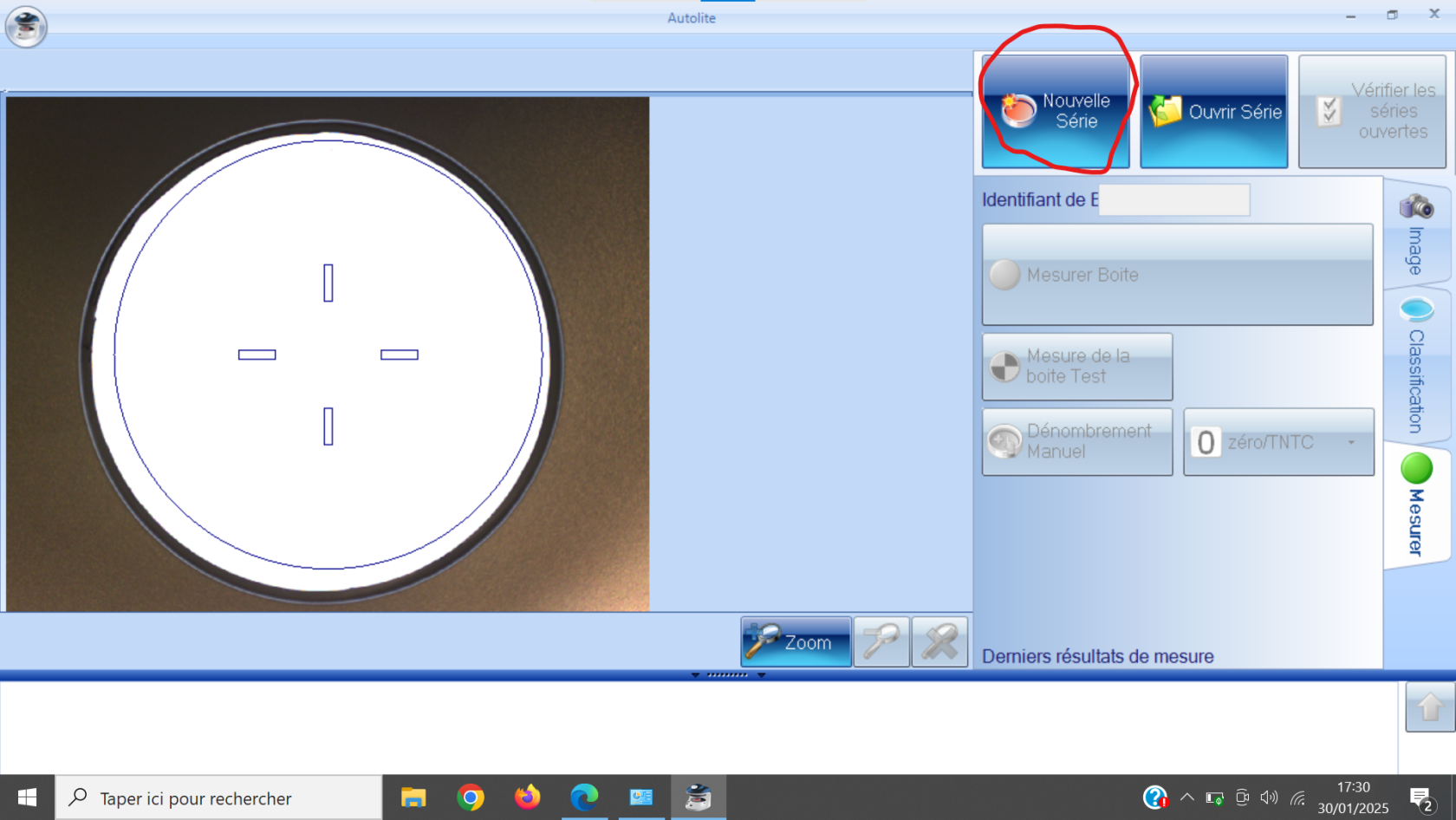
- <span style="font-size: 11pt; font-family: Arial,sans-serif; color: #000000; background-color: transparent; font-weight: 400; font-style: normal; font-variant: normal; text-decoration: none; vertical-align: baseline; white-space: pre-wrap;">Créer une nouvelle série</span>

<span style="font-size: 11pt; font-family: Arial,sans-serif; color: #000000; background-color: transparent; font-weight: 400; font-style: normal; font-variant: normal; text-decoration: none; vertical-align: baseline; white-space: pre-wrap;">[![Capture d’écran 2025-01-30 161600.png](https://wiki.fablab.sorbonne-universite.fr/BookStack/uploads/images/gallery/2025-01/scaled-1680-/eF4capture-decran-2025-01-30-161600.png)](https://wiki.fablab.sorbonne-universite.fr/BookStack/uploads/images/gallery/2025-01/eF4capture-decran-2025-01-30-161600.png)</span>

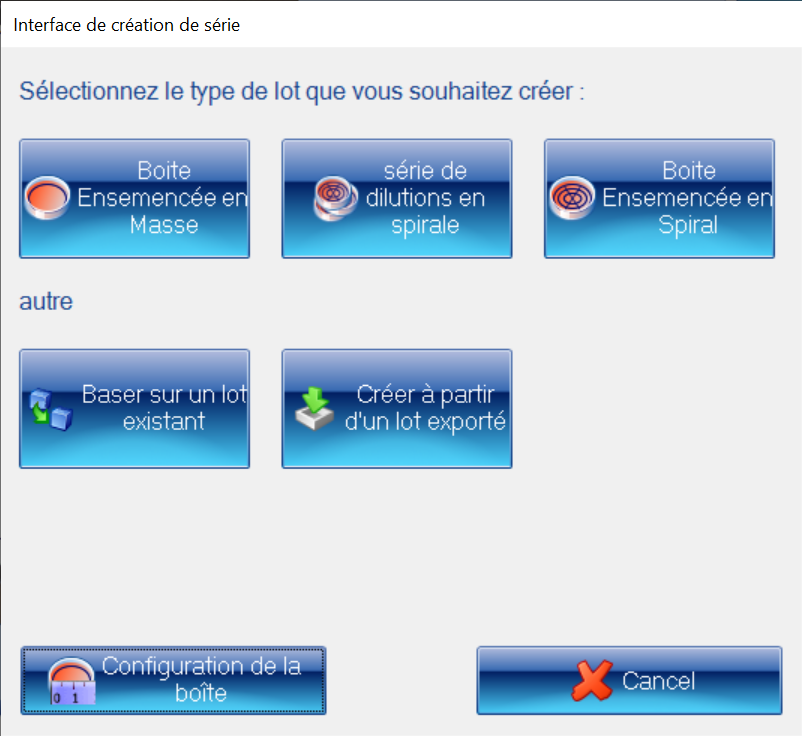
- <span style="font-size: 11pt; font-family: Arial,sans-serif; color: #000000; background-color: transparent; font-weight: 400; font-style: normal; font-variant: normal; text-decoration: none; vertical-align: baseline; white-space: pre-wrap;">Sélectionner le type de lot approprié : ''Boîte ensemencée en masse'', ''Boîte ensemencée en spirale'' avec ou sans dilution</span>

<span style="font-size: 11pt; font-family: Arial,sans-serif; color: #000000; background-color: transparent; font-weight: 400; font-style: normal; font-variant: normal; text-decoration: none; vertical-align: baseline; white-space: pre-wrap;">[![Capture d’écran 2025-01-30 173257.png](https://wiki.fablab.sorbonne-universite.fr/BookStack/uploads/images/gallery/2025-01/scaled-1680-/capture-decran-2025-01-30-173257.png)](https://wiki.fablab.sorbonne-universite.fr/BookStack/uploads/images/gallery/2025-01/capture-decran-2025-01-30-173257.png)</span>

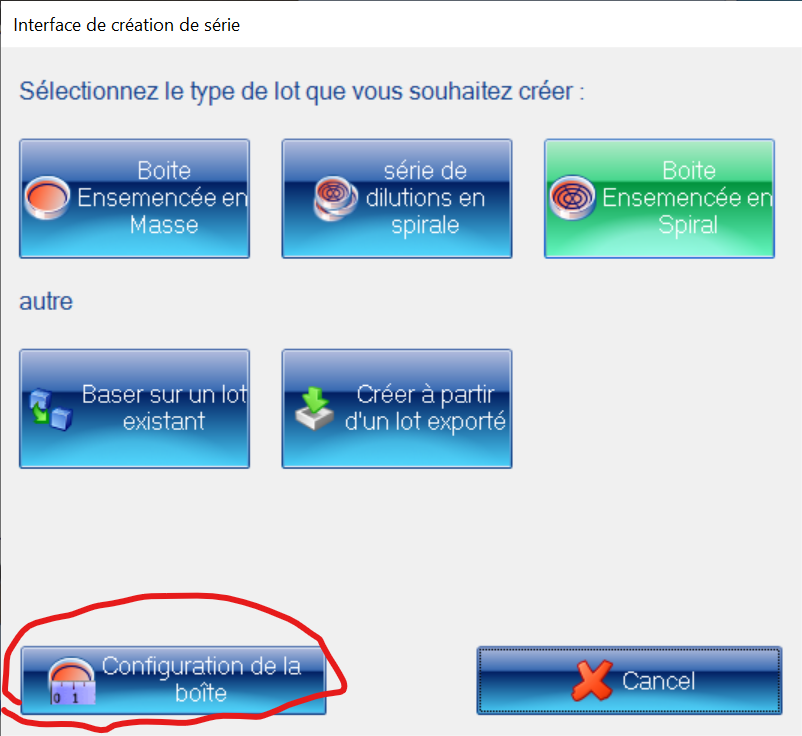
- <span style="font-size: 11pt; font-family: Arial,sans-serif; color: #000000; background-color: transparent; font-weight: 400; font-style: normal; font-variant: normal; text-decoration: none; vertical-align: baseline; white-space: pre-wrap;">Calibrer l’échelle dans ''Configuration de la boite'' avec une distance connue (avec une règle ou avec le diamètre de la boite) ainsi que les facteurs de dilution en spirale ou la taille maximale des colonies</span>

<span style="font-size: 11pt; font-family: Arial,sans-serif; color: #000000; background-color: transparent; font-weight: 400; font-style: normal; font-variant: normal; text-decoration: none; vertical-align: baseline; white-space: pre-wrap;"><span style="font-size: 11pt; font-family: Arial,sans-serif; color: #000000; background-color: transparent; font-weight: 400; font-style: normal; font-variant: normal; text-decoration: none; vertical-align: baseline; white-space: pre-wrap;">[![Capture d’écran 2025-01-30 173140.png](https://wiki.fablab.sorbonne-universite.fr/BookStack/uploads/images/gallery/2025-01/scaled-1680-/capture-decran-2025-01-30-173140.png)](https://wiki.fablab.sorbonne-universite.fr/BookStack/uploads/images/gallery/2025-01/capture-decran-2025-01-30-173140.png)[![Capture d’écran 2025-01-30 173209.png](https://wiki.fablab.sorbonne-universite.fr/BookStack/uploads/images/gallery/2025-01/scaled-1680-/capture-decran-2025-01-30-173209.png)](https://wiki.fablab.sorbonne-universite.fr/BookStack/uploads/images/gallery/2025-01/capture-decran-2025-01-30-173209.png)</span></span>
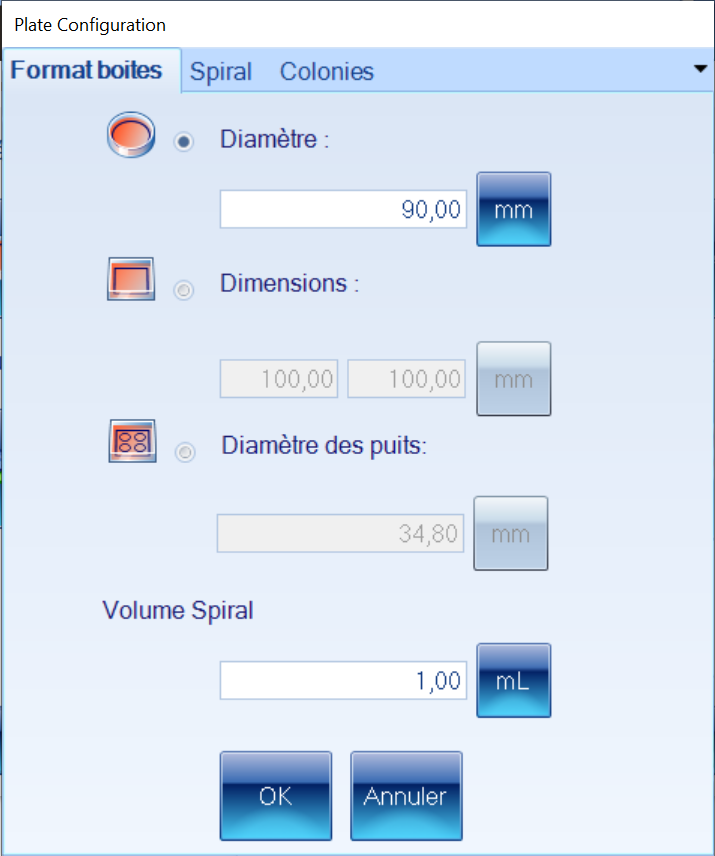
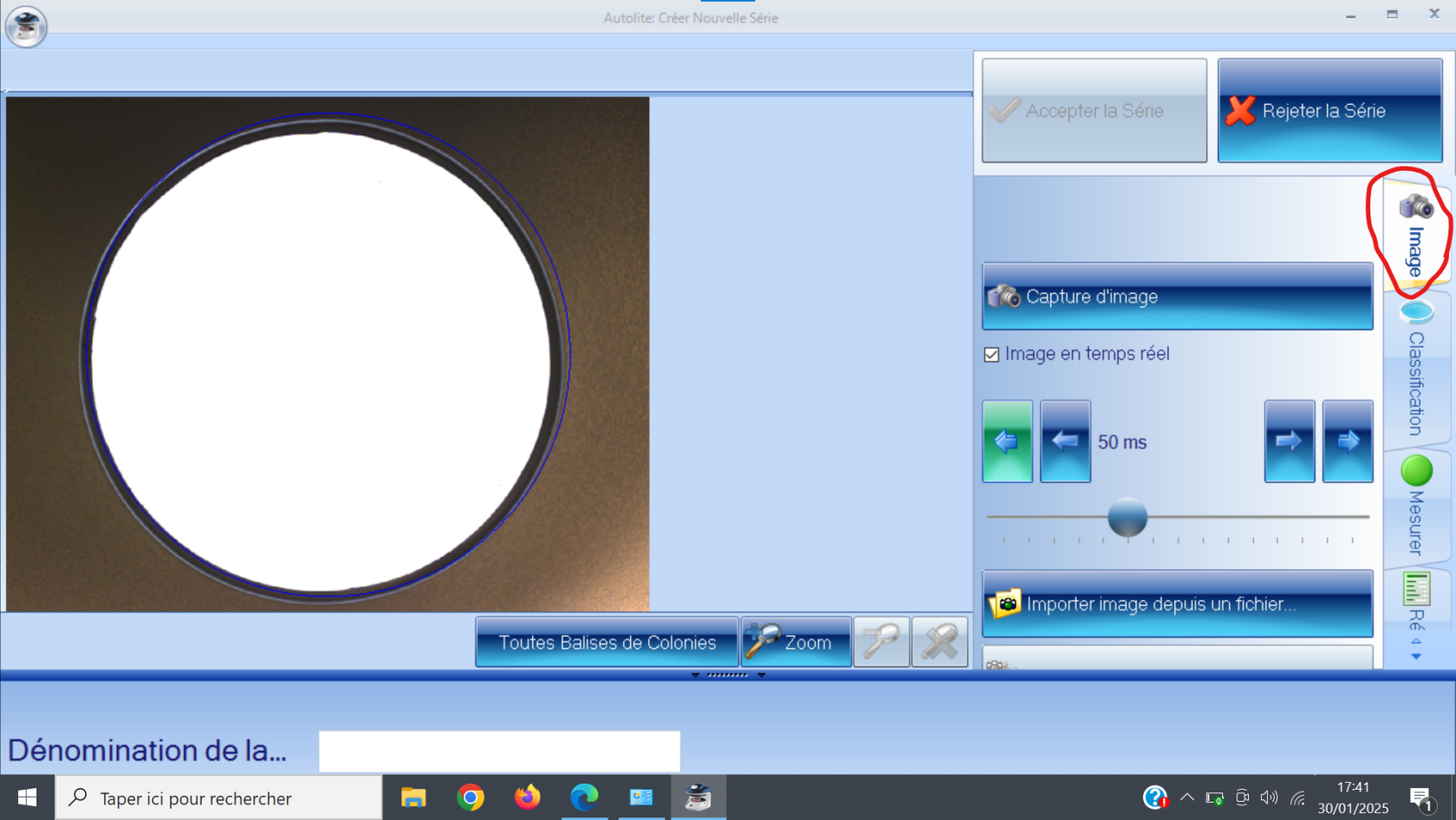
- <span style="font-size: 11pt; font-family: Arial,sans-serif; color: #000000; background-color: transparent; font-weight: 400; font-style: normal; font-variant: normal; text-decoration: none; vertical-align: baseline; white-space: pre-wrap;">Régler l'exposition avec le curseur dans l'onglet ''Image''</span>

<span style="font-size: 11pt; font-family: Arial,sans-serif; color: #000000; background-color: transparent; font-weight: 400; font-style: normal; font-variant: normal; text-decoration: none; vertical-align: baseline; white-space: pre-wrap;">[![Capture d’écran 2025-01-30 174123.png](https://wiki.fablab.sorbonne-universite.fr/BookStack/uploads/images/gallery/2025-01/scaled-1680-/rsbcapture-decran-2025-01-30-174123.png)](https://wiki.fablab.sorbonne-universite.fr/BookStack/uploads/images/gallery/2025-01/rsbcapture-decran-2025-01-30-174123.png)</span>

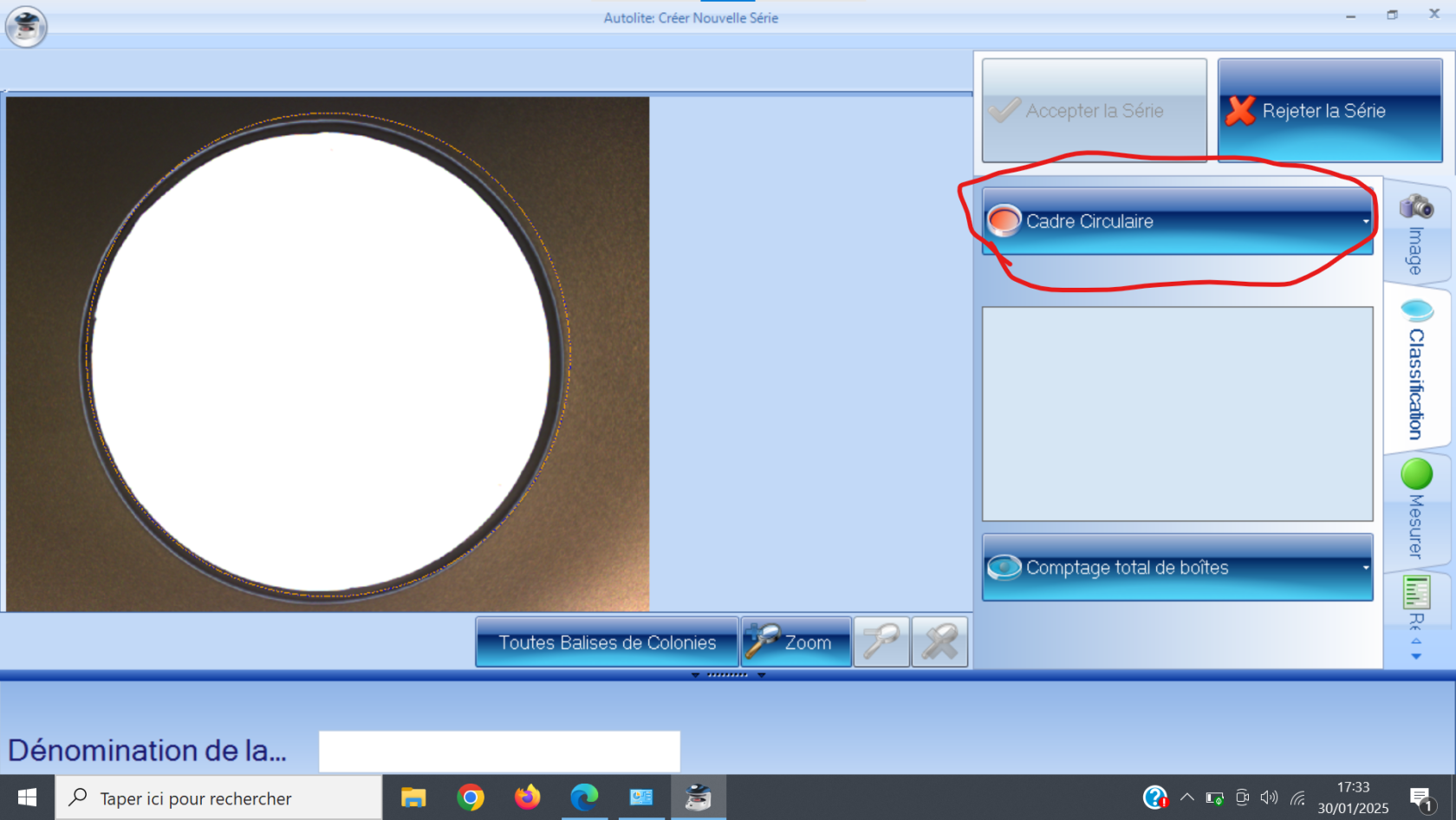
- <span style="font-size: 11pt; font-family: Arial,sans-serif; color: #000000; background-color: transparent; font-weight: 400; font-style: normal; font-variant: normal; text-decoration: none; vertical-align: baseline; white-space: pre-wrap;">Régler le cadre de la boite dans l'onglet "Classification"</span>

<span style="font-size: 11pt; font-family: Arial,sans-serif; color: #000000; background-color: transparent; font-weight: 400; font-style: normal; font-variant: normal; text-decoration: none; vertical-align: baseline; white-space: pre-wrap;">[![Capture d’écran 2025-01-30 173321.png](https://wiki.fablab.sorbonne-universite.fr/BookStack/uploads/images/gallery/2025-01/scaled-1680-/capture-decran-2025-01-30-173321.png)](https://wiki.fablab.sorbonne-universite.fr/BookStack/uploads/images/gallery/2025-01/capture-decran-2025-01-30-173321.png)[![Capture d’écran 2025-01-30 173209.png](https://wiki.fablab.sorbonne-universite.fr/BookStack/uploads/images/gallery/2025-01/scaled-1680-/capture-decran-2025-01-30-173209.png)](https://wiki.fablab.sorbonne-universite.fr/BookStack/uploads/images/gallery/2025-01/capture-decran-2025-01-30-173209.png)</span>

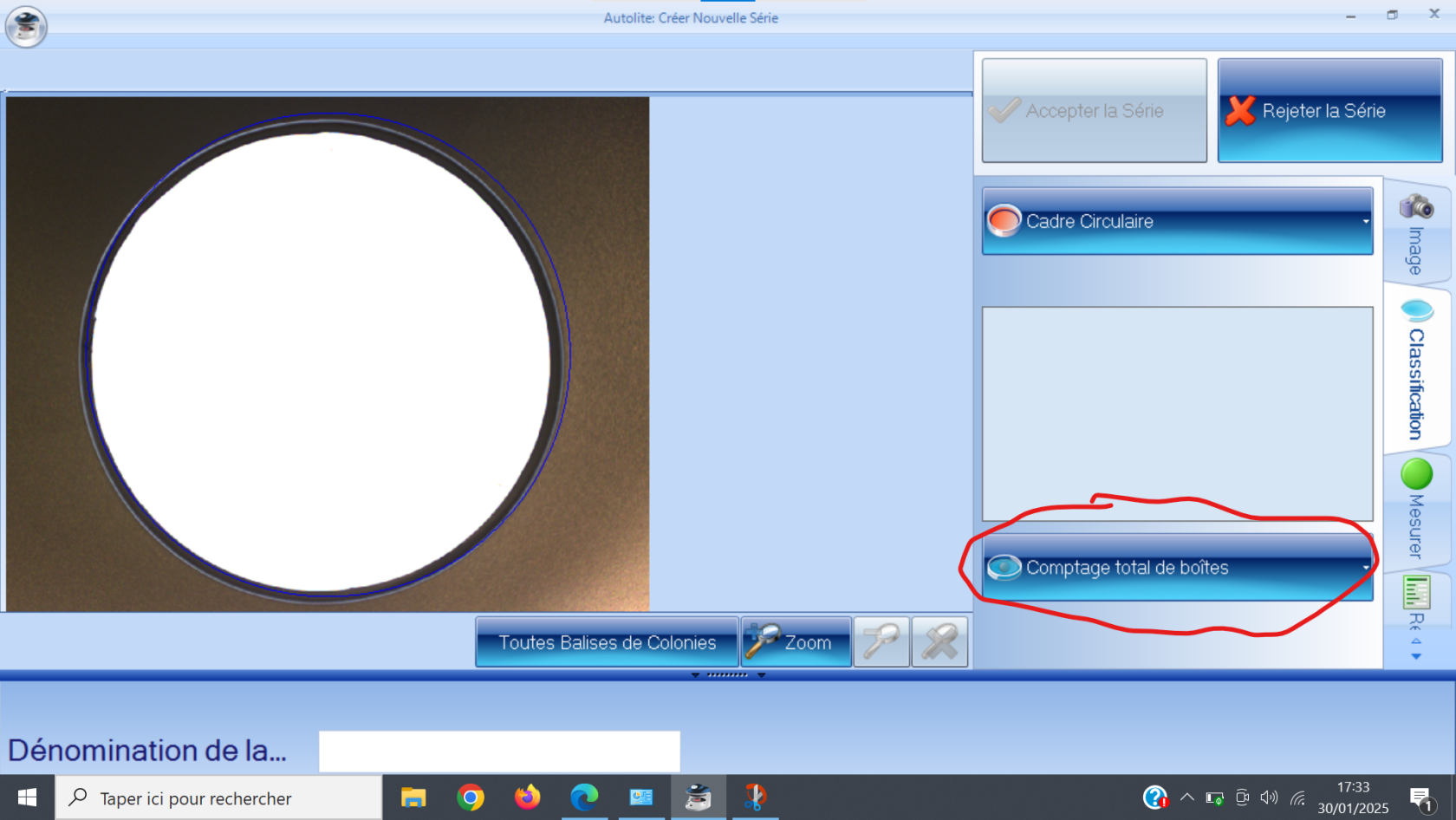
- <span style="font-size: 11pt; font-family: Arial,sans-serif; color: #000000; background-color: transparent; font-weight: 400; font-style: normal; font-variant: normal; text-decoration: none; vertical-align: baseline; white-space: pre-wrap;">Cliquer sur “Comptage total de boîtes” dans l'onglet ''Classification'' pour choisir si les colonies sont plus/moins claires que le fond (utiliser le disque noir si besoin pour augmenter le contraste.</span>

<span style="font-size: 11pt; font-family: Arial,sans-serif; color: #000000; background-color: transparent; font-weight: 400; font-style: normal; font-variant: normal; text-decoration: none; vertical-align: baseline; white-space: pre-wrap;">[![Capture d’écran 2025-01-30 173409.png](https://wiki.fablab.sorbonne-universite.fr/BookStack/uploads/images/gallery/2025-01/scaled-1680-/capture-decran-2025-01-30-173409.png)](https://wiki.fablab.sorbonne-universite.fr/BookStack/uploads/images/gallery/2025-01/capture-decran-2025-01-30-173409.png)</span>

- <p class="callout warning"><span style="font-size: 11pt; font-family: Arial,sans-serif; color: #000000; background-color: transparent; font-weight: 400; font-style: normal; font-variant: normal; text-decoration: none; vertical-align: baseline; white-space: pre-wrap;">Une fois la création de la série validée, vous ne pourrez plus modifier ce paramètre</span></p>
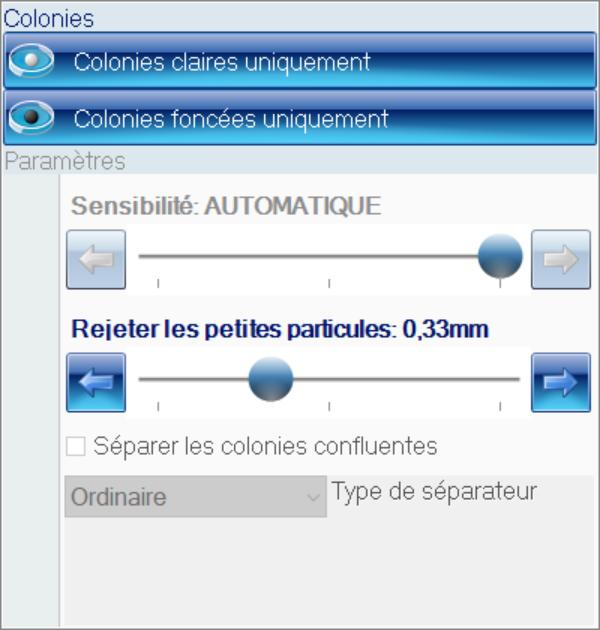
- <span style="font-size: 11pt; font-family: Arial,sans-serif; color: #000000; background-color: transparent; font-weight: 400; font-style: normal; font-variant: normal; text-decoration: none; vertical-align: baseline; white-space: pre-wrap;">Ajuster la sensibilité et la taille minimum des colonies mesurées dans la même fenêtre avec les curseurs</span><span style="font-size: 11pt; font-family: Arial,sans-serif; color: #000000; background-color: transparent; font-weight: 400; font-style: normal; font-variant: normal; text-decoration: none; vertical-align: baseline; white-space: pre-wrap;">-&gt; Vous pouvez alors visualiser les colonies marquées par le logiciel, et choisir la couleur ou les balises permettant de repérer les colonies</span>

[![Capture d’écran 2025-01-30 173353.png](https://wiki.fablab.sorbonne-universite.fr/BookStack/uploads/images/gallery/2025-01/scaled-1680-/capture-decran-2025-01-30-173353.png)](https://wiki.fablab.sorbonne-universite.fr/BookStack/uploads/images/gallery/2025-01/capture-decran-2025-01-30-173353.png)

<span style="font-size: 11pt; font-family: Arial,sans-serif; color: #000000; background-color: transparent; font-weight: 400; font-style: normal; font-variant: normal; text-decoration: none; vertical-align: baseline; white-space: pre-wrap;">Pour être précis, il faut baisser le curseur "Rejeter les petites particules: 0,33mm". Dans la négative, des petites particules (bactéries) inférieures à 0,33mm, ne seront pas prises en compte dans notre étude.</span>

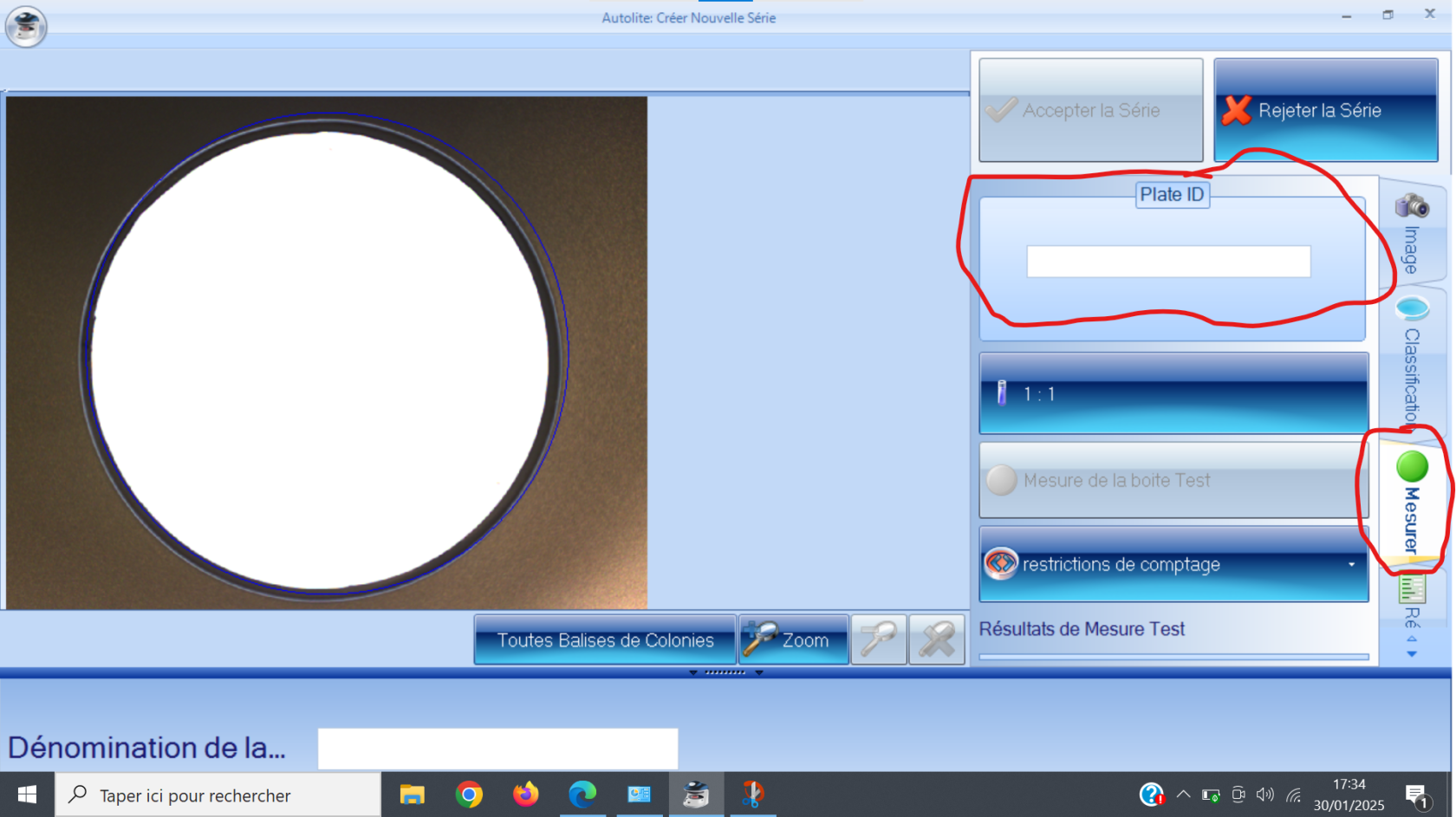
- <span style="font-size: 11pt; font-family: Arial,sans-serif; color: #000000; background-color: transparent; font-weight: 400; font-style: normal; font-variant: normal; text-decoration: none; vertical-align: baseline; white-space: pre-wrap;">Nommer votre boîte de Pétri de référence dans l'onglet ''Mesurer''</span>

<span style="font-size: 11pt; font-family: Arial,sans-serif; color: #000000; background-color: transparent; font-weight: 400; font-style: normal; font-variant: normal; text-decoration: none; vertical-align: baseline; white-space: pre-wrap;">[![Capture d’écran 2025-01-30 173454.png](https://wiki.fablab.sorbonne-universite.fr/BookStack/uploads/images/gallery/2025-01/scaled-1680-/capture-decran-2025-01-30-173454.png)](https://wiki.fablab.sorbonne-universite.fr/BookStack/uploads/images/gallery/2025-01/capture-decran-2025-01-30-173454.png)</span>

- <span style="font-size: 11pt; font-family: Arial,sans-serif; color: #000000; background-color: transparent; font-weight: 400; font-style: normal; font-variant: normal; text-decoration: none; vertical-align: baseline; white-space: pre-wrap;">Modifier le facteur de dilution selon vos besoins dans la case ''Plate ID''[![Capture d’écran 2025-01-30 174910.png](https://wiki.fablab.sorbonne-universite.fr/BookStack/uploads/images/gallery/2025-01/scaled-1680-/capture-decran-2025-01-30-174910.png)](https://wiki.fablab.sorbonne-universite.fr/BookStack/uploads/images/gallery/2025-01/capture-decran-2025-01-30-174910.png)</span>
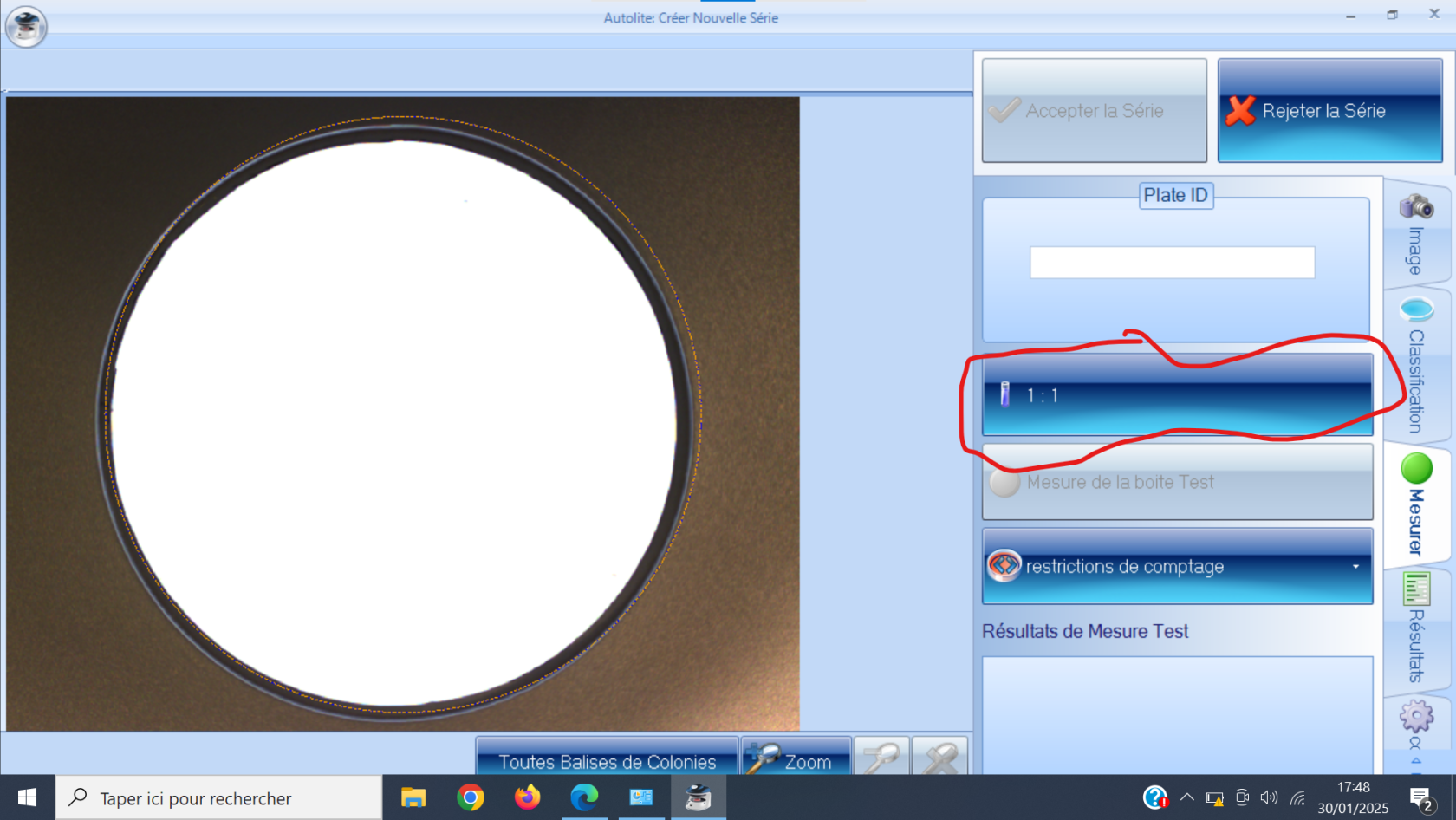
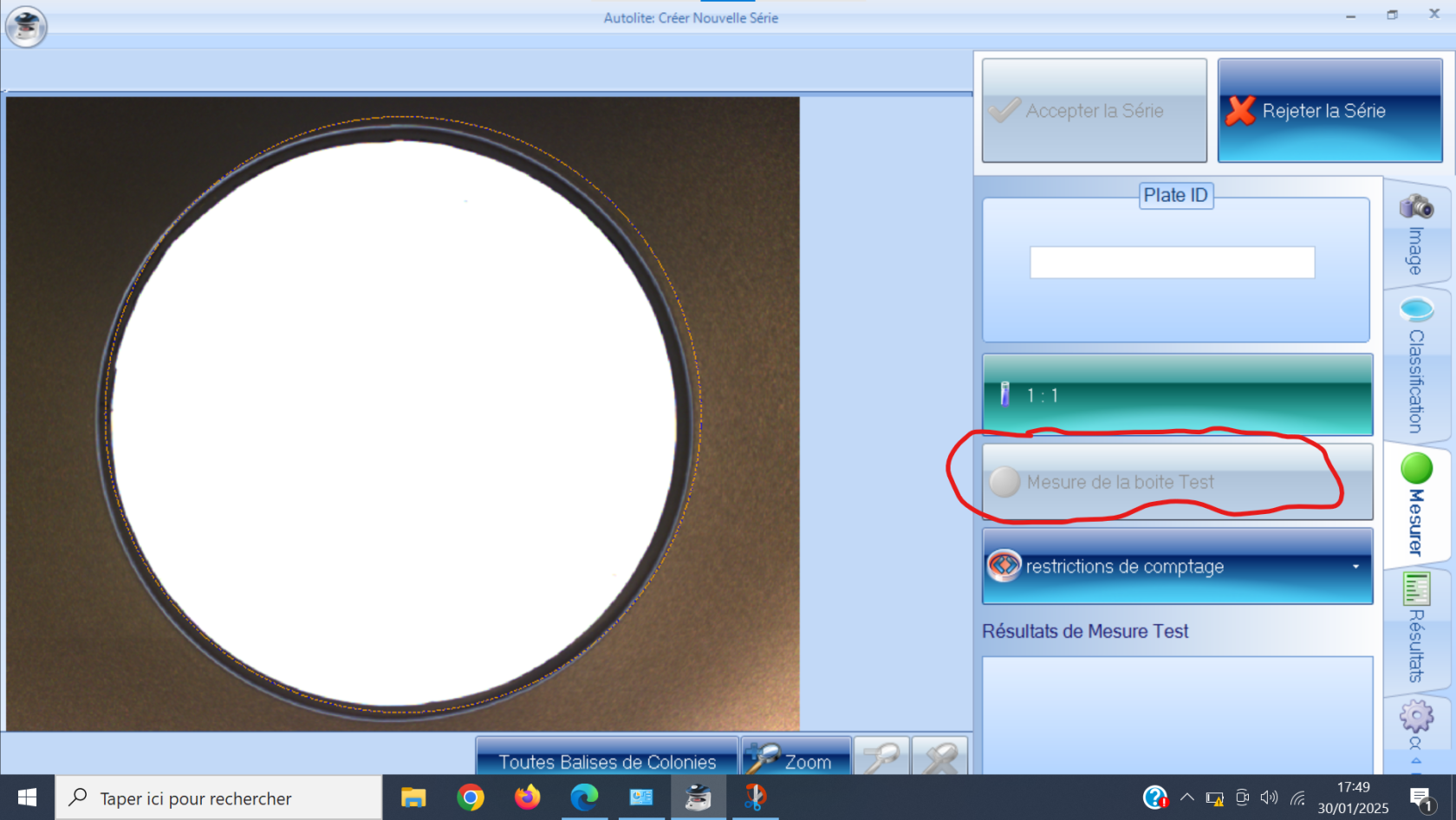
- <span style="font-size: 11pt; font-family: Arial,sans-serif; color: #000000; background-color: transparent; font-weight: 400; font-style: normal; font-variant: normal; text-decoration: none; vertical-align: baseline; white-space: pre-wrap;">Effectuer une mesure test pour vérifier que le logiciel identifie bien toutes les colonies en appuyant sur l'icône ''Mesure de la boîte Test"</span>

<span style="font-size: 11pt; font-family: Arial,sans-serif; color: #000000; background-color: transparent; font-weight: 400; font-style: normal; font-variant: normal; text-decoration: none; vertical-align: baseline; white-space: pre-wrap;">[![Capture d’écran 2025-01-30 174954.png](https://wiki.fablab.sorbonne-universite.fr/BookStack/uploads/images/gallery/2025-01/scaled-1680-/capture-decran-2025-01-30-174954.png)](https://wiki.fablab.sorbonne-universite.fr/BookStack/uploads/images/gallery/2025-01/capture-decran-2025-01-30-174954.png)</span>

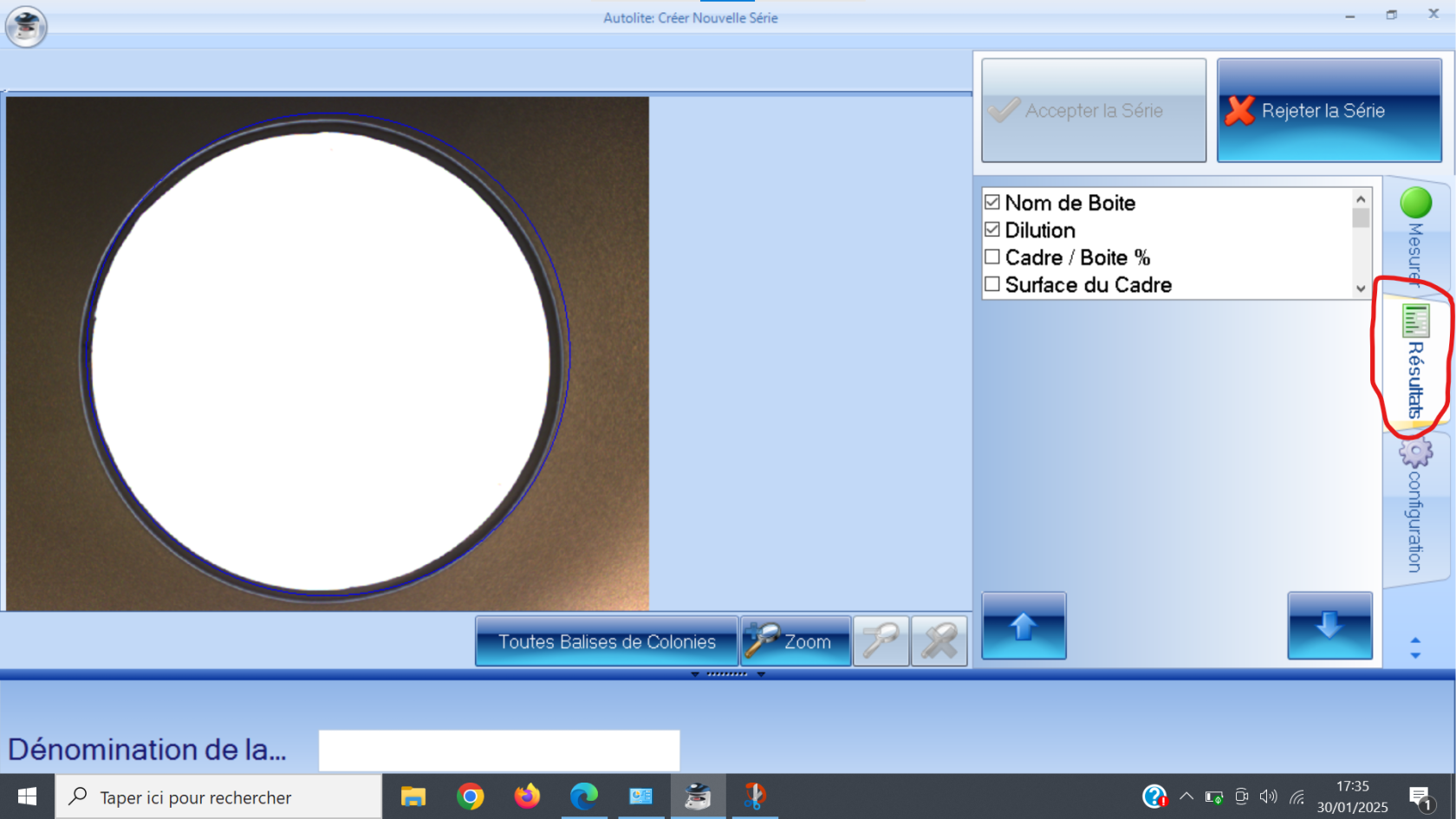
- <span style="font-size: 11pt; font-family: Arial,sans-serif; color: #000000; background-color: transparent; font-weight: 400; font-style: normal; font-variant: normal; text-decoration: none; vertical-align: baseline; white-space: pre-wrap;">Dans l'onglet ''Résultats'', vous pouvez sélectionner les paramètres retenus</span>

<span style="font-size: 11pt; font-family: Arial,sans-serif; color: #000000; background-color: transparent; font-weight: 400; font-style: normal; font-variant: normal; text-decoration: none; vertical-align: baseline; white-space: pre-wrap;">[![Capture d’écran 2025-01-30 173543.png](https://wiki.fablab.sorbonne-universite.fr/BookStack/uploads/images/gallery/2025-01/scaled-1680-/capture-decran-2025-01-30-173543.png)](https://wiki.fablab.sorbonne-universite.fr/BookStack/uploads/images/gallery/2025-01/capture-decran-2025-01-30-173543.png)</span>

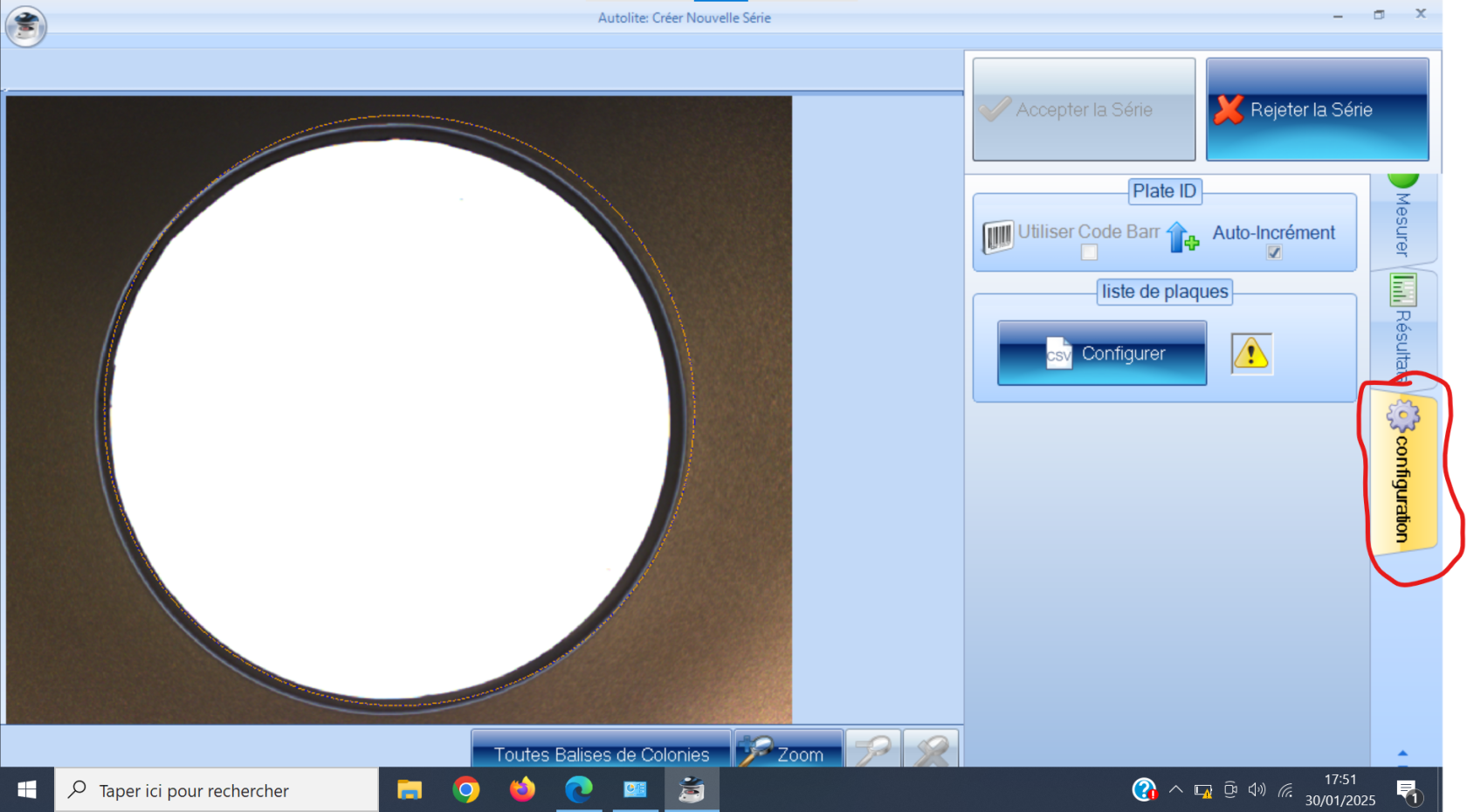
- <span style="font-size: 11pt; font-family: Arial,sans-serif; color: #000000; background-color: transparent; font-weight: 400; font-style: normal; font-variant: normal; text-decoration: none; vertical-align: baseline; white-space: pre-wrap;">Dans l'onglet ''Configuration'', vous pouvez définir le mode de dénomination des différentes boîtes : par incrémentation, par code-barre ou d'après une liste d'échantillons pré-existante</span>

<span style="font-size: 11pt; font-family: Arial,sans-serif; color: #000000; background-color: transparent; font-weight: 400; font-style: normal; font-variant: normal; text-decoration: none; vertical-align: baseline; white-space: pre-wrap;">[![Capture d’écran 2025-01-30 175147.png](https://wiki.fablab.sorbonne-universite.fr/BookStack/uploads/images/gallery/2025-01/scaled-1680-/capture-decran-2025-01-30-175147.png)](https://wiki.fablab.sorbonne-universite.fr/BookStack/uploads/images/gallery/2025-01/capture-decran-2025-01-30-175147.png)</span>

- <span style="font-size: 11pt; font-family: Arial,sans-serif; color: #000000; background-color: transparent; font-weight: 400; font-style: normal; font-variant: normal; text-decoration: none; vertical-align: baseline; white-space: pre-wrap;">Pour finaliser la création de la série, lui donner un nom dans le rectangle ''Dénomination de la série''</span>

<p class="callout warning"><span style="font-size: 11pt; font-family: Arial,sans-serif; color: #000000; background-color: transparent; font-weight: 400; font-style: normal; font-variant: normal; text-decoration: none; vertical-align: baseline; white-space: pre-wrap;">Sans nom, vous ne pourrez pas créer votre série</span></p>

- <span style="font-size: 11pt; font-family: Arial,sans-serif; color: #000000; background-color: transparent; font-weight: 400; font-style: normal; font-variant: normal; text-decoration: none; vertical-align: baseline; white-space: pre-wrap;">Cliquer sur ''Accepter la série''</span>

##### b. d'une série préexistante

- <span style="font-size: 11pt; font-family: Arial,sans-serif; color: #000000; background-color: transparent; font-weight: 400; font-style: normal; font-variant: normal; text-decoration: none; vertical-align: baseline; white-space: pre-wrap;">Cliquer sur ''Ouvrir série"</span>
- <span style="font-size: 11pt; font-family: Arial,sans-serif; color: #000000; background-color: transparent; font-weight: 400; font-style: normal; font-variant: normal; text-decoration: none; vertical-align: baseline; white-space: pre-wrap;">Sélectionner la série de votre choix</span>
- <span style="font-size: 11pt; font-family: Arial,sans-serif; color: #000000; background-color: transparent; font-weight: 400; font-style: normal; font-variant: normal; text-decoration: none; vertical-align: baseline; white-space: pre-wrap;">Reprendre le comptage où vous l'aviez laissé</span>

- <span style="font-size: 11pt; font-family: Arial,sans-serif; color: #000000; background-color: transparent; font-weight: 400; font-style: normal; font-variant: normal; text-decoration: none; vertical-align: baseline; white-space: pre-wrap;">**A la fin de l'utilisation** : fermer votre série dans le gestionnaire de série et aller dans réglage --&gt; quitter Autolite</span>

#### 3. Résultats

<span style="font-size: 11pt; font-family: Arial,sans-serif; color: #000000; background-color: transparent; font-weight: 400; font-style: normal; font-variant: normal; text-decoration: none; vertical-align: baseline; white-space: pre-wrap;">Si vous le souhaitez, le logiciel peut conformer pour vous les résultats sous la forme d'un compte-rendu. Pour cela : </span>

- <span style="font-size: 11pt; font-family: Arial,sans-serif; color: #000000; background-color: transparent; font-weight: 400; font-style: normal; font-variant: normal; text-decoration: none; vertical-align: baseline; white-space: pre-wrap;">Aller dans le menu ''Autolite'' en haut à gauche</span>
- <span style="font-size: 11pt; font-family: Arial,sans-serif; color: #000000; background-color: transparent; font-weight: 400; font-style: normal; font-variant: normal; text-decoration: none; vertical-align: baseline; white-space: pre-wrap;">Sélectionner ''Exporter les données''</span>
- <span style="font-size: 11pt; font-family: Arial,sans-serif; color: #000000; background-color: transparent; font-weight: 400; font-style: normal; font-variant: normal; text-decoration: none; vertical-align: baseline; white-space: pre-wrap;">Choisir le dossier d'arrivée et exporter vos données</span>

# Guide d'installation du software

Avant d'utiliser le programme Auto Lite, il faut d'abord procéder à l'installation du software. Pour ce faire, quelques prérequis:

- Être connecté sur un profil administrateur sur le PC
- La clé USB "YOUR IMAGING SOFTWARE"

[![IMG_0606.jpeg](https://wiki.fablab.sorbonne-universite.fr/BookStack/uploads/images/gallery/2025-01/scaled-1680-/img-0606.jpeg)](https://wiki.fablab.sorbonne-universite.fr/BookStack/uploads/images/gallery/2025-01/img-0606.jpeg)
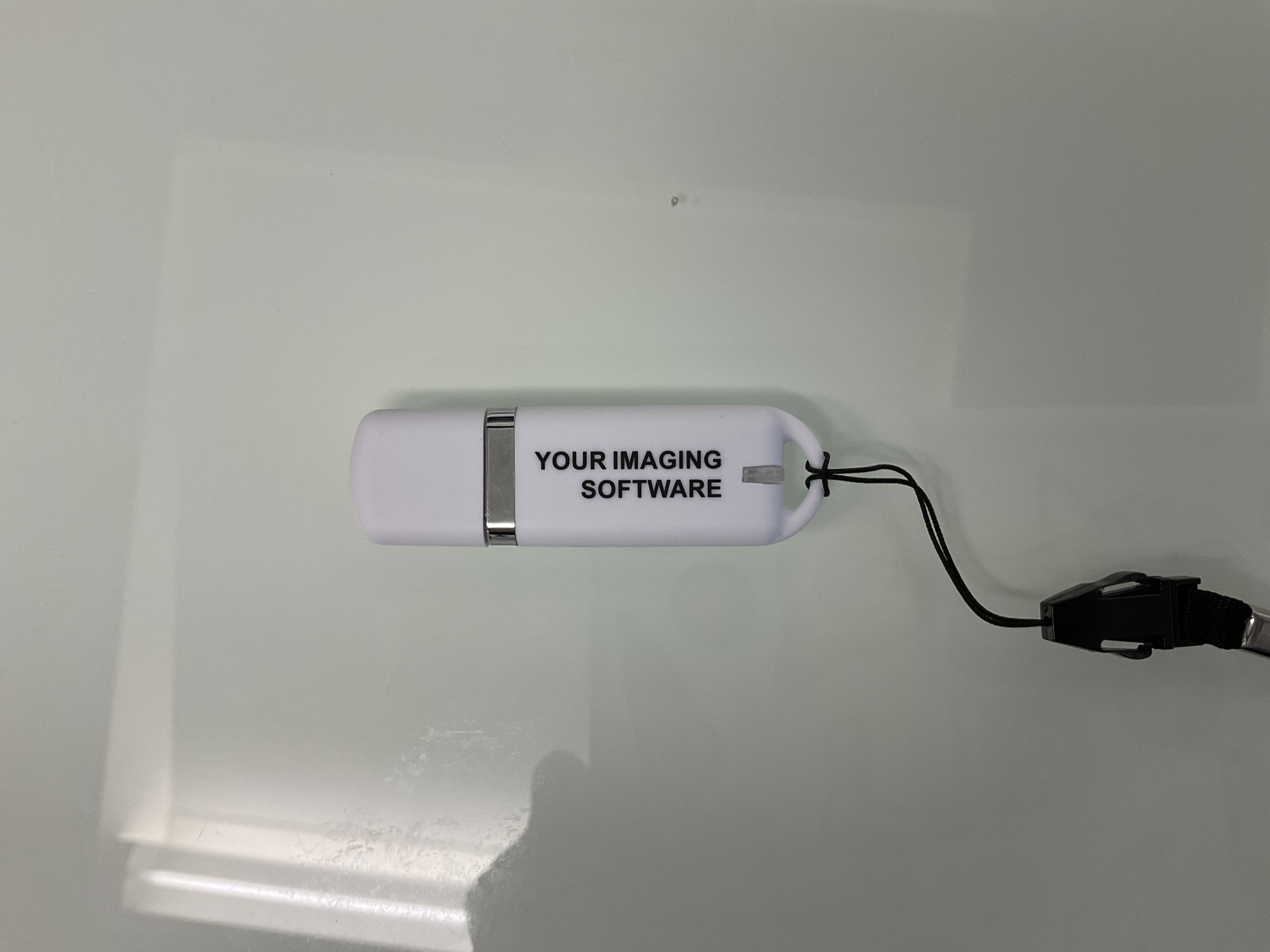
- La clé USB d'authentification

[![IMG_0607.jpeg](https://wiki.fablab.sorbonne-universite.fr/BookStack/uploads/images/gallery/2025-01/scaled-1680-/img-0607.jpeg)](https://wiki.fablab.sorbonne-universite.fr/BookStack/uploads/images/gallery/2025-01/img-0607.jpeg)
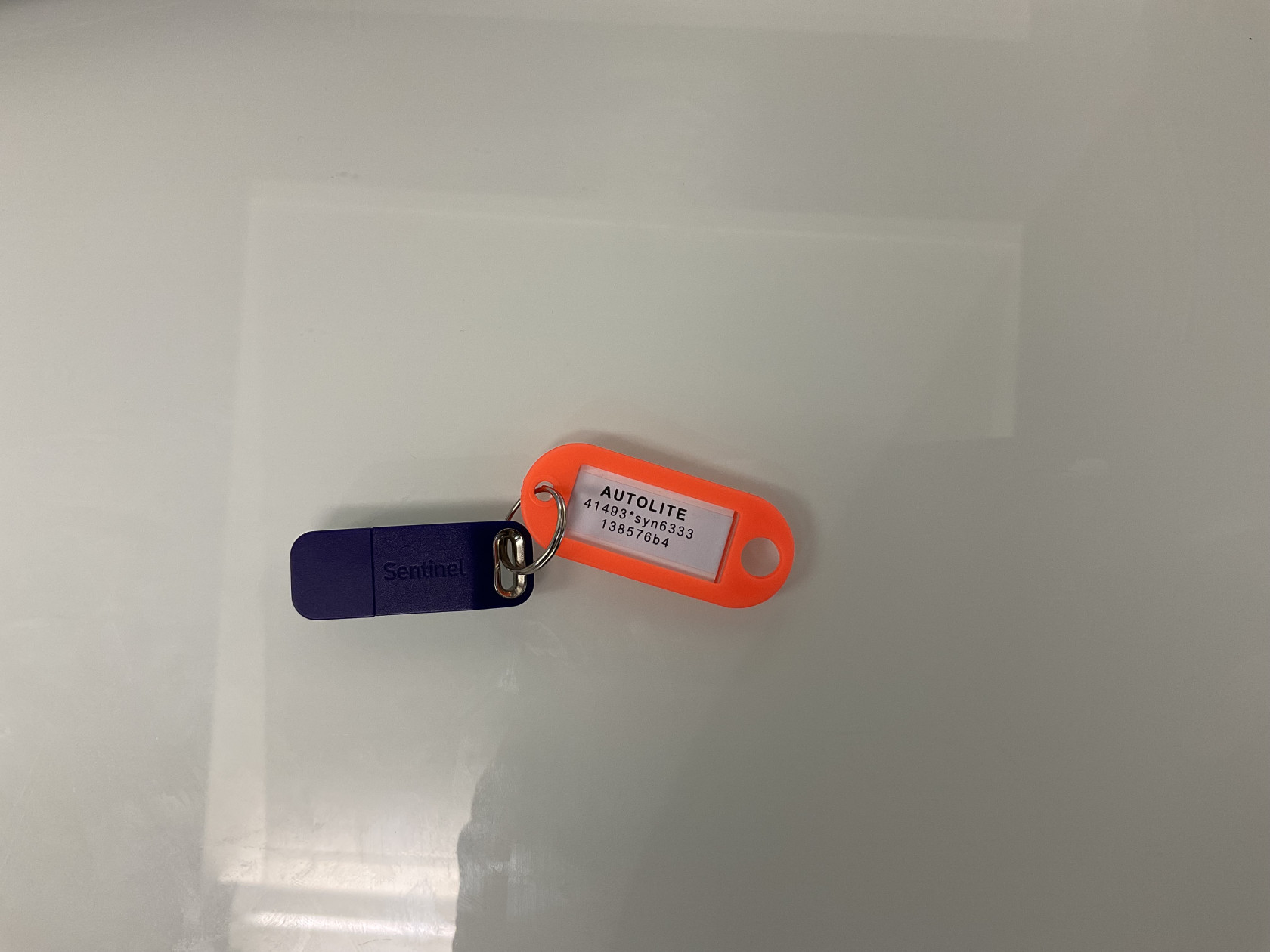
Insérer la clé USB "YOUR IMAGING SOFTWARE", la trouver dans l'explorateur des fichiers:

I/ Vérifier l'installation de Microsoft .NET Framework:

- Aller dans AutoLite-1-3-14&gt;Support&gt;Framework, ouvrir l'exécutable "SetupFramework". Si le programme est déjà installé, le message "Microsoft .NET Framework 4.0 is already installed" s'affichera. Dans le cas échéant suivre les instructions à l'écran et compléter l'installation.

II/ Installer SQL Server:

- Aller dans AutoLite-1-3-14&gt;Support&gt;Database, ouvrir l'exécutable "SetupA3SqlServer": 
    - S'il y a seulement un utilisateur sur le PC, choisir l'option "SQL LocalDB" sur la première page de l'assistant d'installation. Suivre les instructions à l'écran pour terminer l'installation.
    - Si l'on souhaite donner accès au programme à plusieurs profils utilisateurs sur le même ordinateur, choisir l'option "SQL Server Express" sur la première page de l'assistant d'installation. Suivre les instructions à l'écran pour terminer l'installation.
- Redémarrer l'ordinateur.

III/ Installer le programme Auto Lite:

- Ouvrir le dossier AutoLite-1-3-14, ouvrir l'exécutable "Setup". Suivre les instructions à l'écran.
- Redémarrer l'ordinateur.

IV/ Ajout des autorisations pour les profils utilisateurs concernés:

- Ouvrir le panneau de configuration.
- Aller dans Panneau de configuration&gt;Système et sécurité&gt;Outils d’administration, puis ouvrir "Gestion de l'Ordinateur".
- Trouver l'onglet "Utilisateurs et groupes locaux" dans la colonne tout à gauche de la fenêtre qui s'ouvre, puis choisir "Groupes".

[![Capture d’écran 2025-01-30 161357.png](https://wiki.fablab.sorbonne-universite.fr/BookStack/uploads/images/gallery/2025-01/scaled-1680-/capture-decran-2025-01-30-161357.png)](https://wiki.fablab.sorbonne-universite.fr/BookStack/uploads/images/gallery/2025-01/capture-decran-2025-01-30-161357.png)[![Capture d’écran 2025-01-30 161437.png](https://wiki.fablab.sorbonne-universite.fr/BookStack/uploads/images/gallery/2025-01/scaled-1680-/capture-decran-2025-01-30-161437.png)](https://wiki.fablab.sorbonne-universite.fr/BookStack/uploads/images/gallery/2025-01/capture-decran-2025-01-30-161437.png)
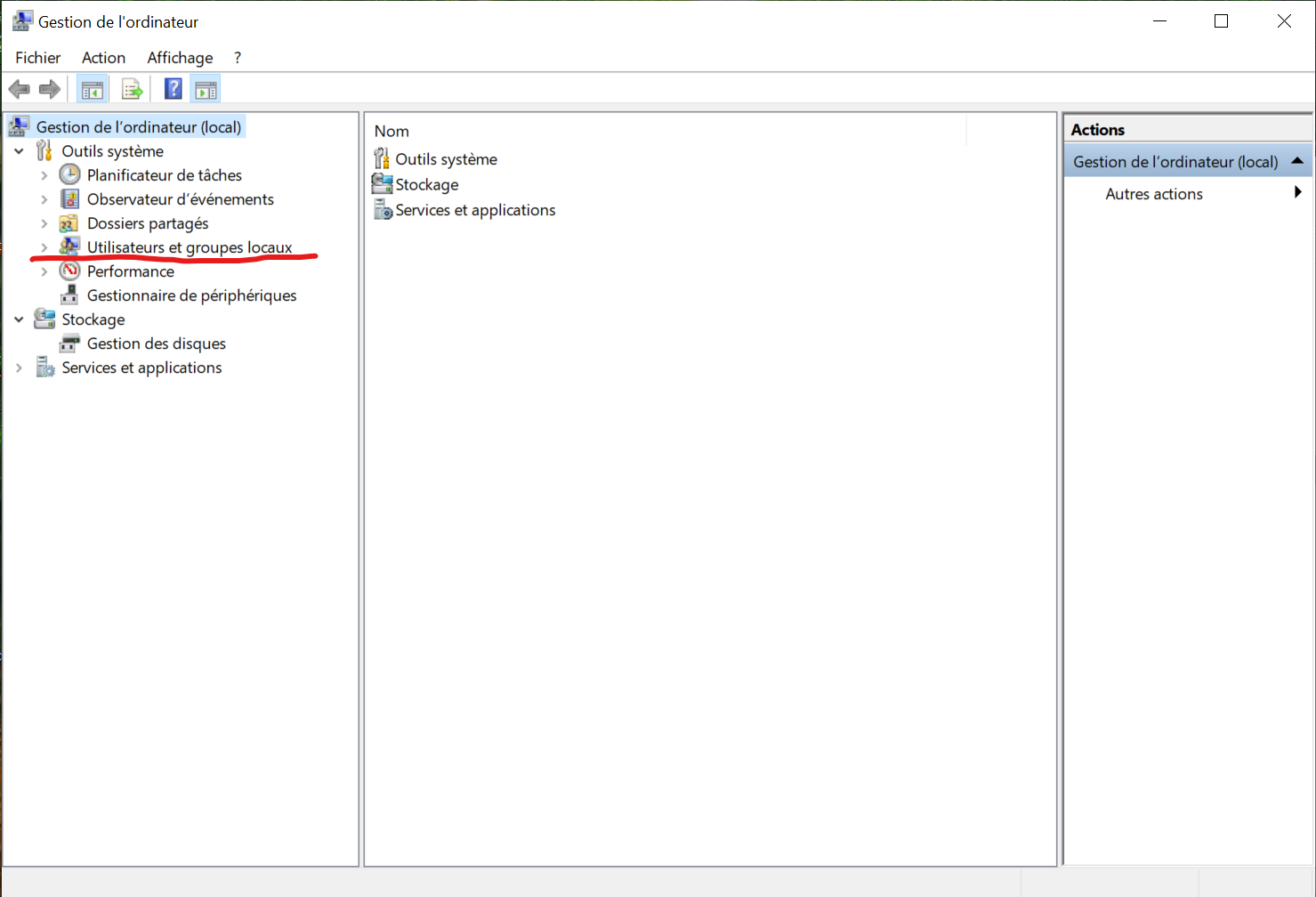
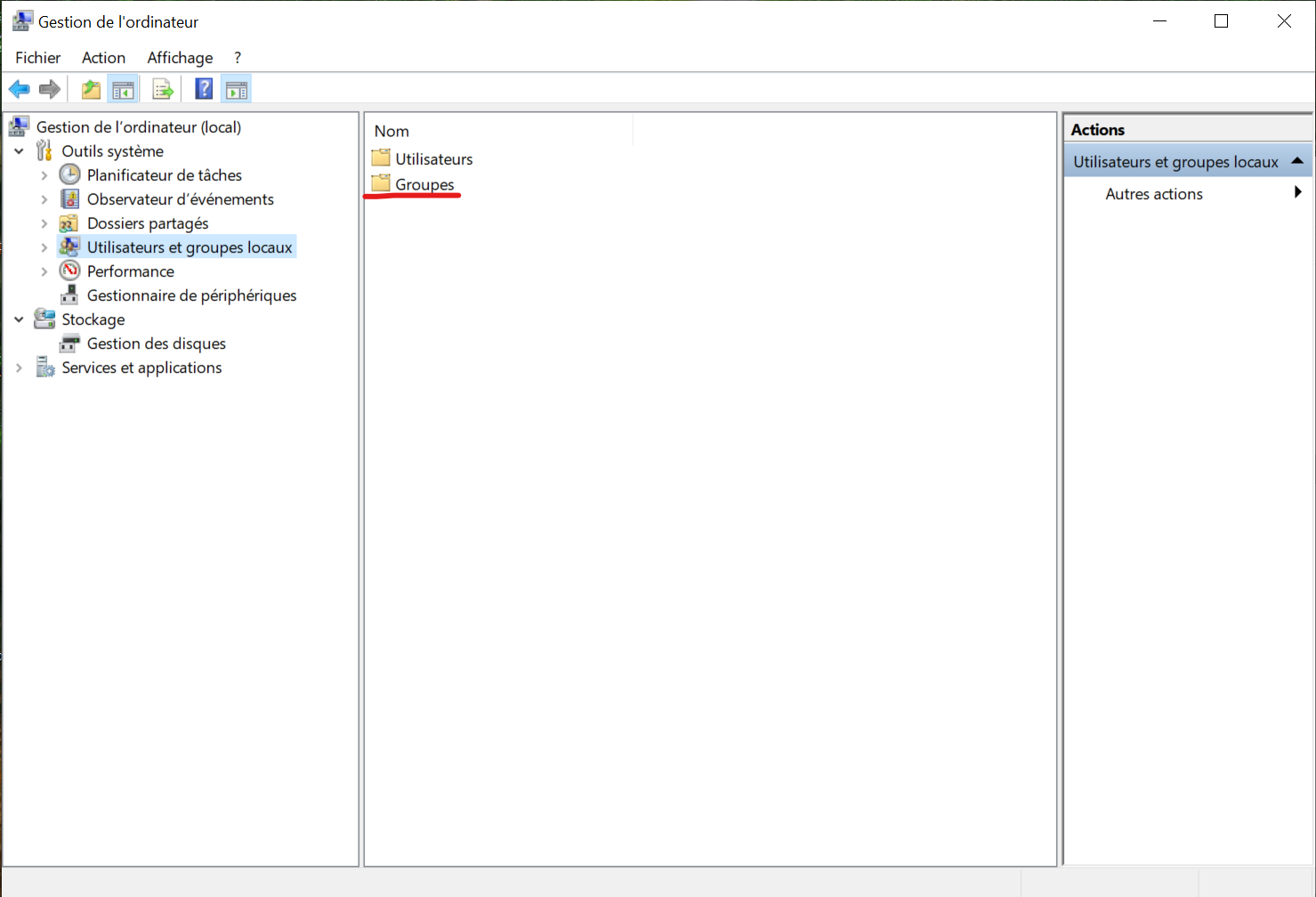
- Trouver "Autolite Users", et l'ouvrir.

[![Capture d’écran 2025-01-30 161503.png](https://wiki.fablab.sorbonne-universite.fr/BookStack/uploads/images/gallery/2025-01/scaled-1680-/capture-decran-2025-01-30-161503.png)](https://wiki.fablab.sorbonne-universite.fr/BookStack/uploads/images/gallery/2025-01/capture-decran-2025-01-30-161503.png)
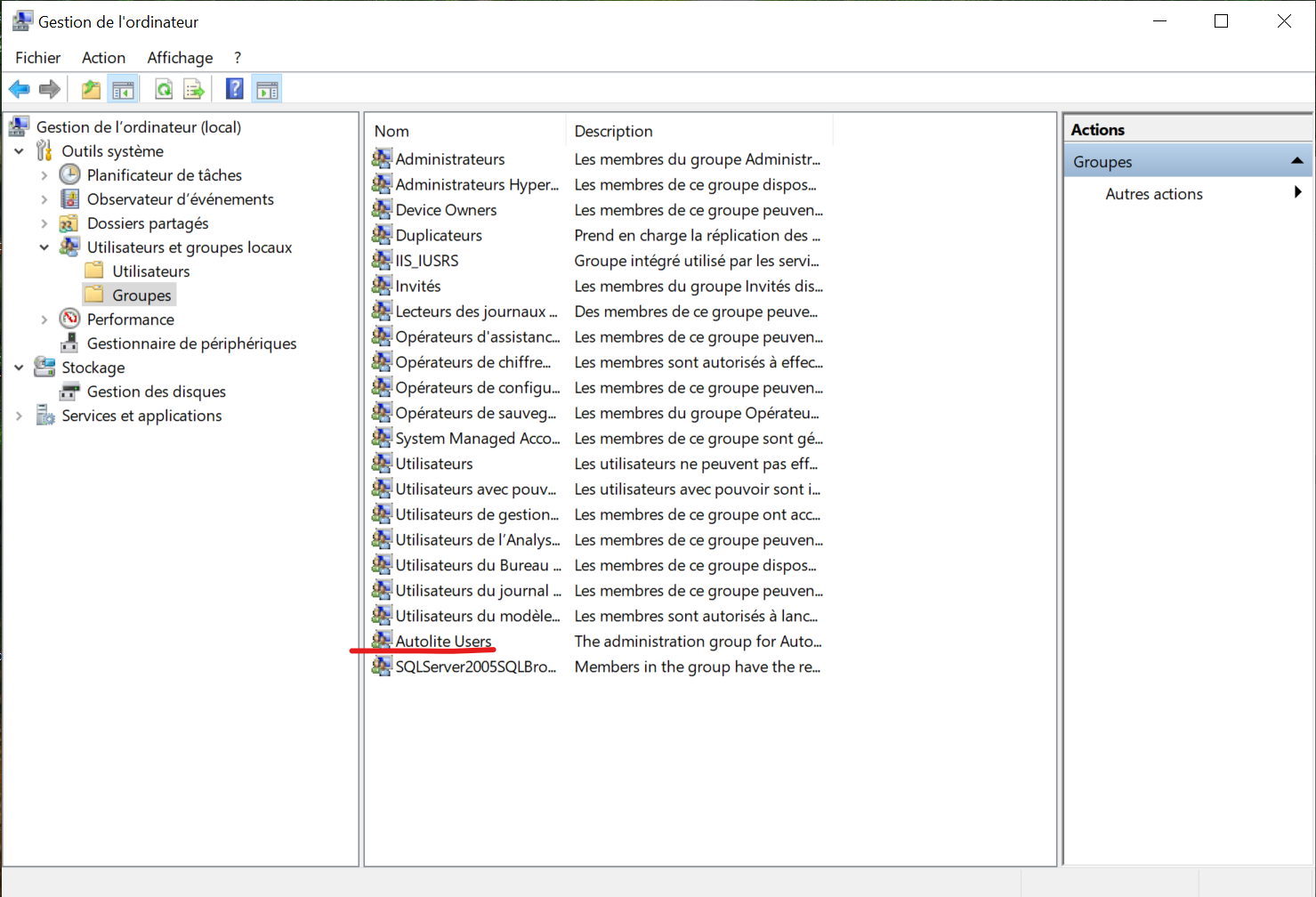
- Dans la fenêtre qui s'ouvre, cliquer sur "Ajouter"

[![Capture d’écran 2025-01-30 161526.png](https://wiki.fablab.sorbonne-universite.fr/BookStack/uploads/images/gallery/2025-01/scaled-1680-/capture-decran-2025-01-30-161526.png)](https://wiki.fablab.sorbonne-universite.fr/BookStack/uploads/images/gallery/2025-01/capture-decran-2025-01-30-161526.png)
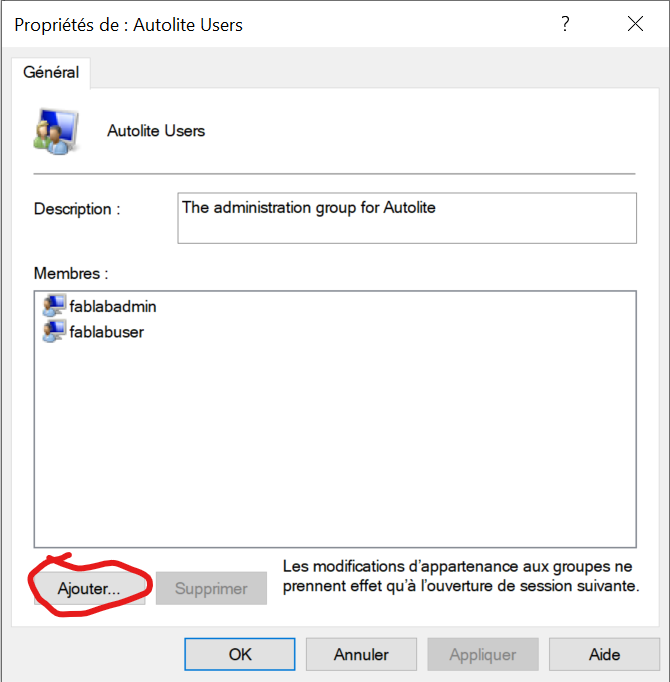
- Dans la nouvelle fenêtre ainsi ouverte, entrer le nom du profil utilisateur concerné, ou les noms si l'on souhaite donner accès au programme à plusieurs utilisateurs (exemple: fablabuser sur les ordinateurs du fablab), puis cliquer sur "Vérifier les noms"

[![Capture d’écran 2025-01-30 161600.png](https://wiki.fablab.sorbonne-universite.fr/BookStack/uploads/images/gallery/2025-01/scaled-1680-/capture-decran-2025-01-30-161600.png)](https://wiki.fablab.sorbonne-universite.fr/BookStack/uploads/images/gallery/2025-01/capture-decran-2025-01-30-161600.png)
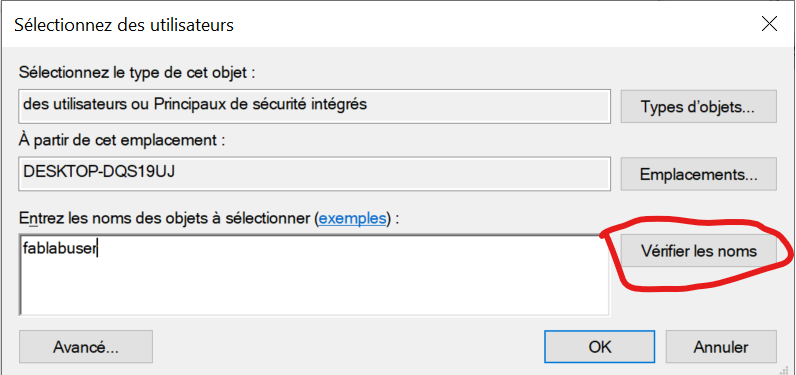
- Cliquer sur "Appliquer", puis sur OK.

V/ Lancement du programme

- Brancher l'appareil au secteur
- Le brancher à l'ordinateur via le cable USB.
- Insérer la clé USB de licence, le programme ne s'ouvre pas le cas échéant.
- Lancer Auto Lite.